
10 iPhone Battery Tips That Bust Common Battery Myths
Your iPhone can chew through battery even when nothing seems to be happening. Plenty of old-school tips barely help, while others kill the features you paid for in the first place.

Apple has certainly been putting more work into iPhone battery life. The iOS 26 update, for example, made the Battery page a lot less cryptic by showing where the power went and why. I watched my own usage for a few days and spotted several easy fixes. Then I did the thing nobody does and read Apple’s support guide. That cleared up one charging myth I had believed for years and showed me what to do instead.
iOS 26 Finally Explains the Battery Drain
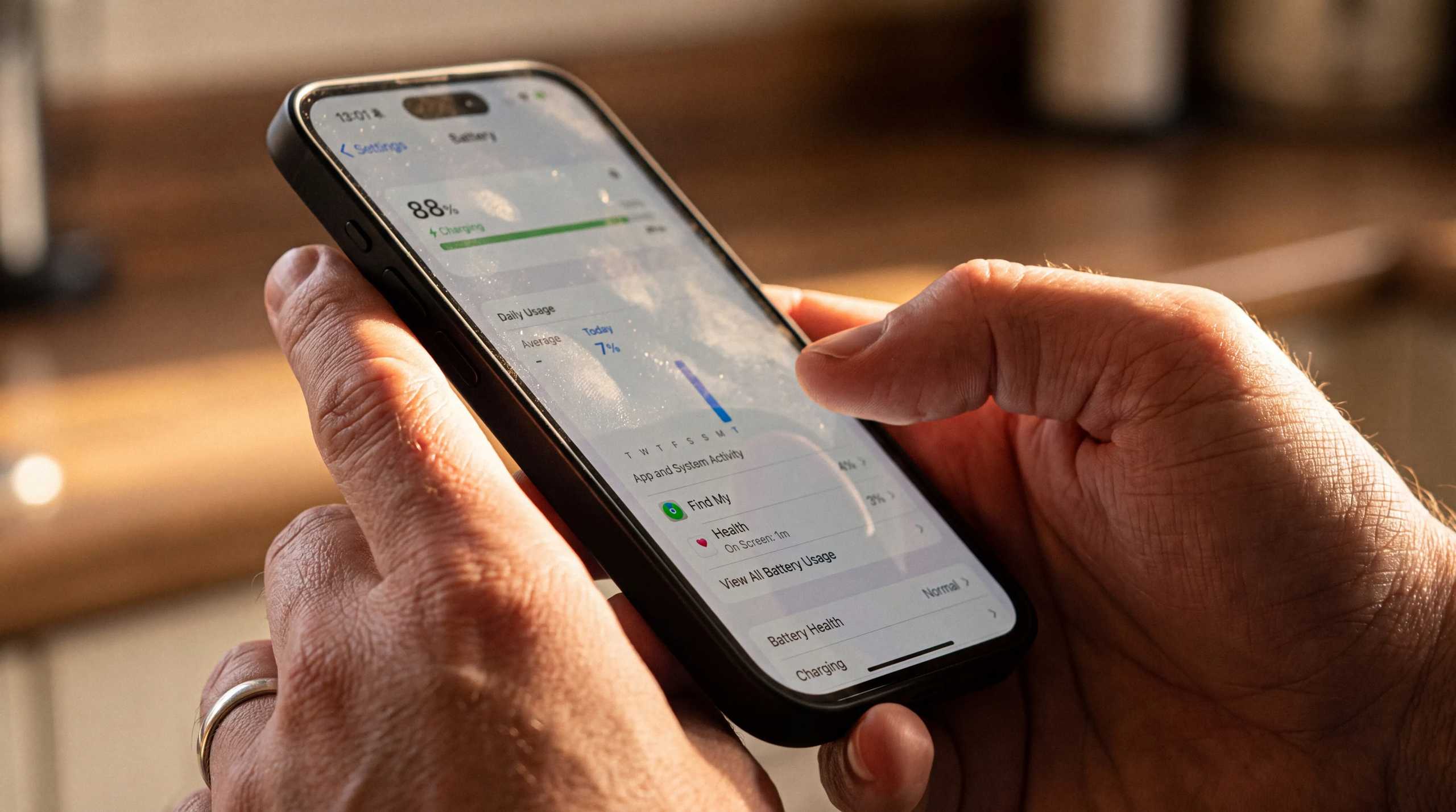
iOS 26 gave the Battery page a substantial overhaul, with more detail on power use and where that drain is coming from. Open Settings > Battery, and the Daily Usage section compares today’s draw against the previous seven. When consumption climbs above that recent pattern, Apple can surface a Suggestion or Insight pointing toward likely causes. In practice, that can mean high screen brightness, plus auto-brightness or auto-lock switched off. Another example is extra power use as an iOS update finishes and device setup continues in the background.
Tapping View All Battery Usage brings up a complete breakdown, with labels such as Background Activity, Notifications, No Mobile Coverage and Low Signal, or Connected to Charger. Elsewhere on that page, iOS 26 shows how long charging should take, while the Lock Screen can display the same estimate.


When iOS 26 arrived, Apple also added Adaptive Power for the iPhone 15 Pro and Pro Max, the iPhone 16 and 17 families, and iPhone Air. On-device intelligence scans for heavier use and starts small, like a slight drop in display brightness. At the same time, certain background activity may take longer. Then, Low Power Mode comes on at 20%.
Still, software can only do so much on its own. What makes the bigger difference is how you use the device day to day. Here are my 10 iPhone battery-saving tips for stretching each charge and slowing long-term wear.
1. Build a Baseline Over a Few Days
Before deleting apps or dimming the screen into oblivion, use that new Battery view across two or three typical days. A Sunday afternoon parked on sports streaming services for NFL games will obviously skew the numbers. Instead, look for a pattern. Little screen time paired with heavy background activity or one app taking an outsized share deserves attention first.
2. Lower Brightness and Shorten the Lock Timer
Apple puts reducing screen brightness near the top of its battery-saving advice. Naturally, high levels consume more energy. Keep the display at the lowest comfortable level and leave Auto-Brightness enabled under Settings > Accessibility > Display & Text Size.
In Settings > Display & Brightness, set Auto-Lock to 30 seconds so the panel cuts out quickly after you stop using it. Some models also allow turning off ‘Always On Display’, which trims yet another source of power use.
3. Let Adaptive Power + Low Power Mode Help Early
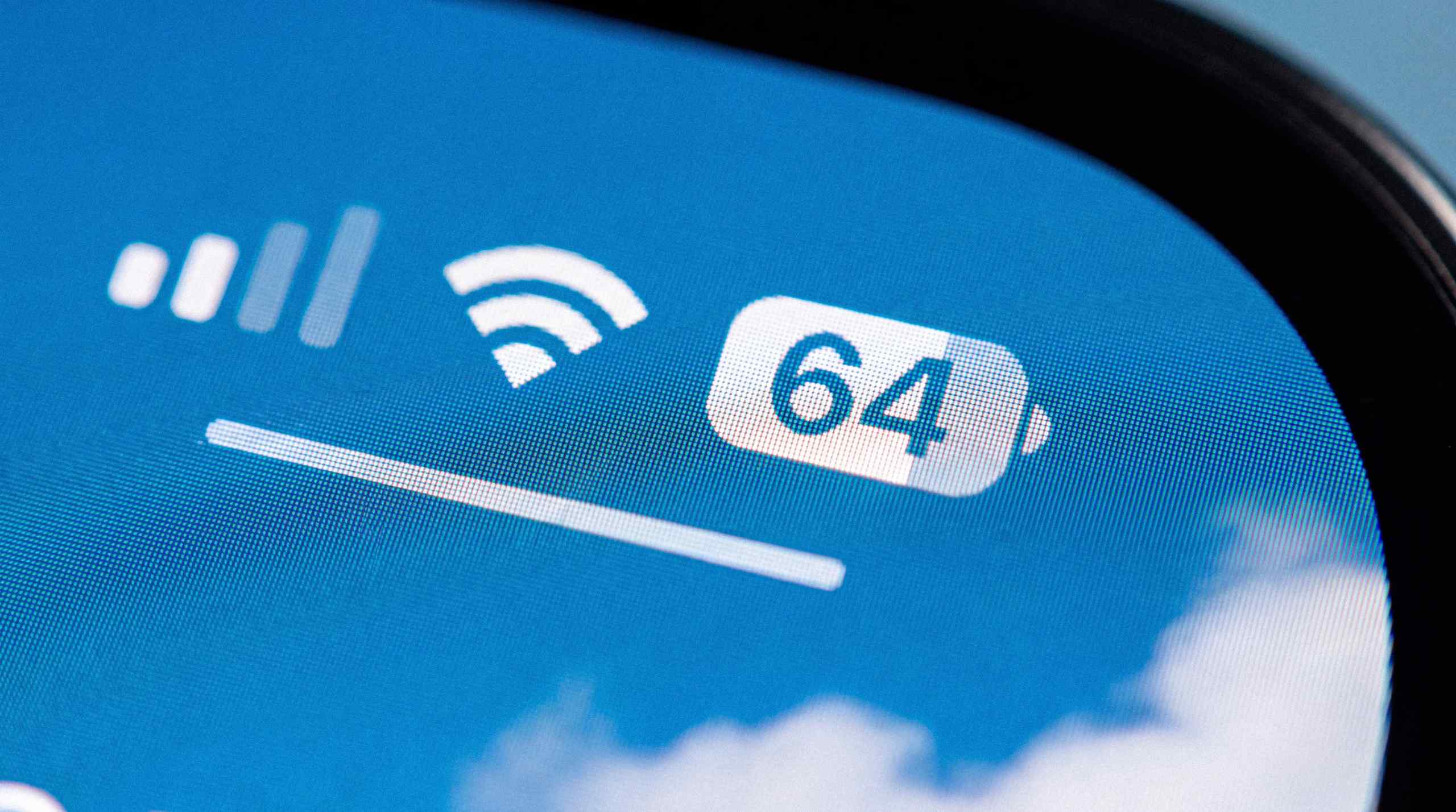
If your iPhone supports Adaptive Power, check Settings > Battery > Power Mode and make sure it is enabled. On days when too much screen time is unavoidable or a charger won’t be handy, I recommend turning on Low Power Mode manually rather than waiting for the 20% trigger. iPhone 15 Pro and newer have both options available in the same menu. On iPhone 14 and earlier, Low Power Mode appears directly under Battery.
4. Fix Weak Signal Instead of Blaming 5G
Apple says Wi-Fi uses less battery than cellular, and either connection becomes more efficient with a strong signal. Poor reception works the other way because your iPhone spends an increased amount of energy maintaining service. In View All Battery Usage, the labels No Mobile Coverage and Low Signal point straight at that issue.
If you’re stuck in a long dead zone, Airplane Mode stops the iPhone from burning power hunting for cellular service. For trips, I like having maps, playlists, and other offline content downloaded over Wi-Fi ahead of time rather than pulling everything over mobile data later. Apple’s current guidance also says Wi-Fi and Bluetooth use minimal energy while idle, so constantly toggling either one buys very little.
5. Give Each App Only the lLocation it Needs
Some apps can keep checking where you are even after you leave them. Apple offers several permission levels, from Never through While Using the App to Always, with Precise Location controlled separately. Cutting that off wholesale can break features that depend on positioning.
I would suggest only allowing continuous location access for navigation, transportation, and similar software. Sportsbook and casino apps can be another exception because geolocation is one of the technologies you generally cannot gamble without. For the latter, While Using the App is usually enough. Background access also makes sense for things such as recorded workouts or geofences. Anything without a clear reason to track location off-screen should go.
6. Limit Background Refresh to One App at a Time
My sixth iPhone battery-saving tip is limiting automatic background updates for software that can wait until you open it. Low Power Mode already switches this off, so check the setting mainly when using the phone normally. Go to Settings > General > Background App Refresh and trim access selectively. News, shopping, and social feeds are easy candidates. Don’t clear the App Switcher afterward; Apple says force-closing doesn’t save power because suspended apps aren’t using system resources.
7. Stop Non-Urgent Alerts From Waking the Screen
In Settings > Battery, the Notifications label means alerts from that app woke the iPhone and used power checking for new information. There are three main ways to cut that back:
- Turn alerts off entirely if nothing from that service requires immediate attention.
- Keep notifications, but remove Lock Screen, banners, or sounds. A great alternative when you want to stay updated yet not interrupted.
- Use Scheduled Summary for news, scores, shopping or social updates that can wait.
I would then advise leaving instant delivery for messages, authentication prompts, and all forms of safety alerts.
8. Keep iOS Current, Then Let Updates Settle
Apple recommends staying on the latest iOS because new releases can include energy-saving improvements and bug fixes. Keep in mind, though, that iPhone battery life can still look worse for a short stretch after an update as the phone indexes files or finishes setup in the background.
I’d say hold off on troubleshooting for a while. If Battery shows Ongoing iOS Update or Ongoing Device Setup, let that process finish first, then check another full day of use.
9. Check Battery hHealth
One thing that can save a lot of unnecessary troubleshooting is checking whether the shorter runtime is because of an aging battery. iPhone 15 and newer models show Maximum Capacity alongside cycle count, basically a tally of full 100%-equivalent use over time.
Apple designs these batteries in iPhone 15 Pro and later to retain 80% of their original capacity after 1,000 complete cycles under ideal conditions. Even so, with active AppleCare coverage, dropping below 80% qualifies for battery service at no extra charge regardless of cycle count.
10. Limit Full Charges and Keep Heat Down
I used to think overnight charging was bad for an iPhone, the same way I took the eight-glasses-of-water-a-day thing as gospel. Apple says it's safe because the iPhone automatically stops charging once full. The bigger concern is spending too much time at 100%, which adds wear over the long term. iPhone 15 and later now offer charge limits from 80% through 100% in 5-point steps. Need every last percent that day? Use 100% with Optimized Battery Charging, which delays the final stretch until closer to when you normally unplug.
Heat is another big one. According to Apple, ambient temperatures above 95°F (35°C) can permanently shorten battery lifespan, with charging in high heat adding further damage.
Charlon Muscat is an established iGaming expert who entered the space in 2019 and went on to build a name across both casino and sportsbook content.
More Articles like this
Do AI Detectors Like Pangram, ZeroGPT, Grammarly Actually Work?
There are plenty of AI detectors out there – including Pangram, ZeroGPT, Grammarly – but do any of them actually work? The answer might surprise you.
By Cole Rush
Could the NBA's Smart Ball Change Basketball Forever?
The NBA is testing a sensor-equipped ball in preseason games. It won't change a single call this fall, but it points toward faster reviews and fewer officiating arguments.
By Cole Rush
Apple's $3,199 iPhone Duo Is Even Pricier Than You Think
Apple's new $3,199 iPhone Duo is the priciest iPhone ever. But even after adjusting nearly two decades of Apple pricing for inflation, the size of the gap is surprising.
.webp)
By Cole Rush
Gambling Technology Trends: 5 Technologies That Changed the Industry
From RNGs and live dealer streaming to geolocation and AI, these gambling technology trends transformed the industry—and could help shape what comes next.

By Charlon Muscat
Could GTA VI Bring Back Casinos? Here’s What We Know So Far
GTA VI has lottery signs and gambling references, but Rockstar hasn’t confirmed a casino. Here’s what the clues and GTA’s history tell us so far.

By Charlon Muscat
How Streamers and YouTubers Rewired Gambling Culture
Forget billboards. The gambling industry's most effective marketers are streamers who build parasocial relationships and promote affiliate codes. Here's how they work, why they work, and what it means for you.

By Cole Rush